vim
vim使用
1 | vimtutor |
- 移动光标
- “H”键左移光标,”J”键下移光标,”K”键上移光标,”L”键右移光标。(仅在Normal model下可用)
- 方向键也可移动光标。(Normal model 或 Insert 状态下都可以)
:q! <ENTER> discards any changes you made.不保存退出1
2
3
4
5
6
7
8
9
10
11
12
13
14
15
16
17
18
19
20
21
22
3. 删除光标处的字符:按下“X”。(Normal model下)
<img src="image-20220530103801848.png" />
<img src="image-20220530103906619.png" alt="image-20220530103906619" />
4. “I”按下i,进入INSERT状态。<img src="image-20220530103536716.png" alt="image-20220530103536716" />
此时可以在光标所在处输入。
<img src="image-20220530103925546.png" alt="image-20220530103925546" />
<img src="image-20220530104002613.png" alt="image-20220530104002613" />
5. “A”进入INSERT,光标从按下A时所在的字符向后退一格扩展输入。A=>appending
<img src="image-20220530104519118.png" alt="image-20220530104519118" />
<img src="image-20220530104559395.png" alt="image-20220530104559395" />
6. ```shell
:wq save file with changes and exit Vim1
2
3
4
5
6
7
8
9
10
11
12
13
14
15
16
17
18
19
20
21
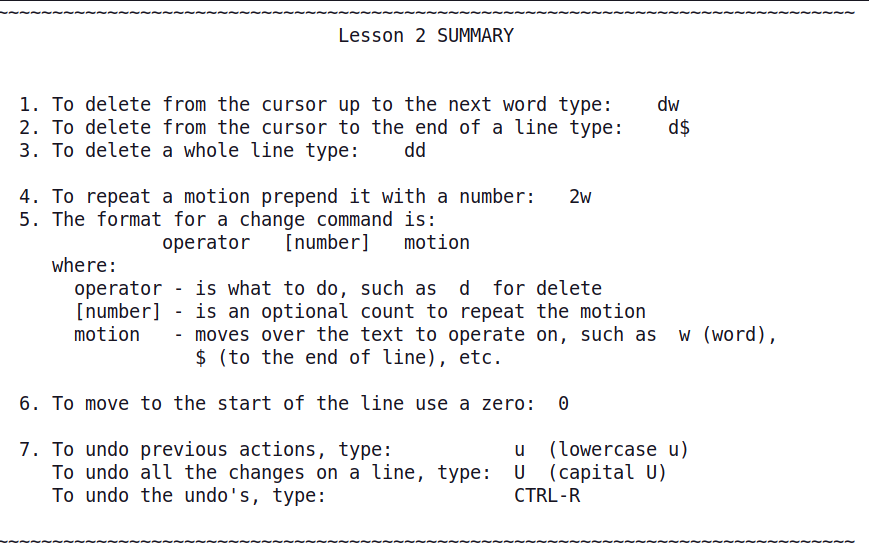
22Lesson 1 SUMMARY
1. The cursor is moved using either the arrow keys or the hjkl keys.
h (left) j (down) k (up) l (right)
2. To start Vim from the shell prompt type: vim FILENAME <ENTER>
3. To exit Vim type: <ESC> :q! <ENTER> to trash all changes.
OR type: <ESC> :wq <ENTER> to save the changes.
4. To delete the character at the cursor type: x
5. To insert or append text type:
i type inserted text <ESC> insert before the cursor
A type appended text <ESC> append after the line
NOTE: Pressing <ESC> will place you in Normal mode or will cancel
an unwanted and partially completed command.
Now continue with lesson 2.
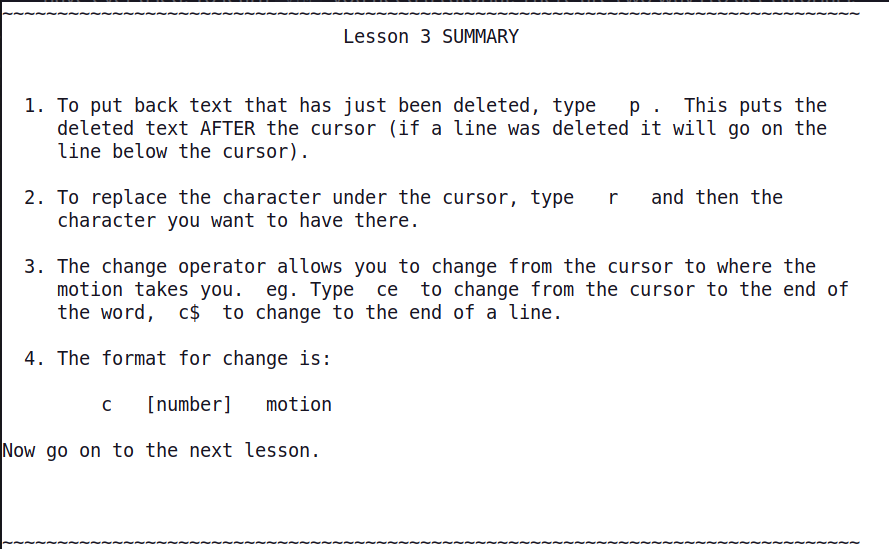
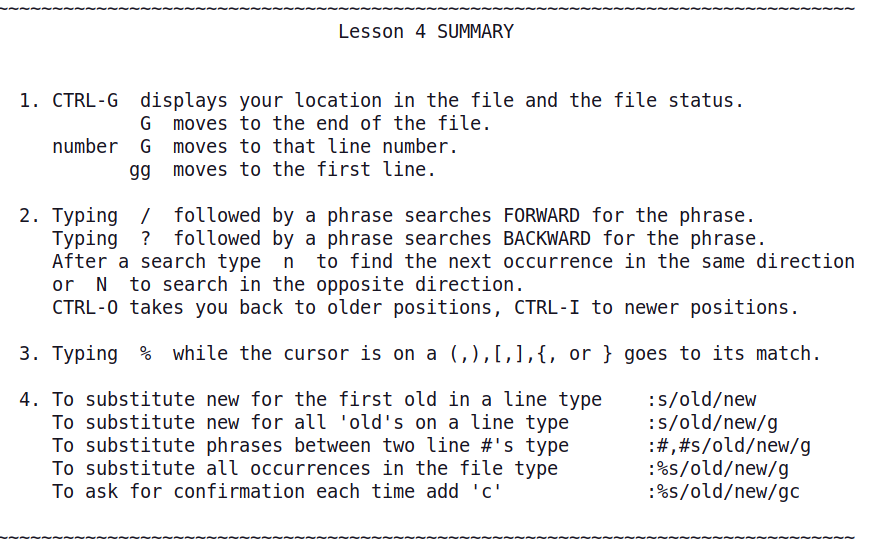
vim配置
1 | cp /etc/vim/vimrc ~/.vimrc |
vim下的工具
ctags
GNU/Linux
samll tutorial : https://ysyx.oscc.cc/docs/ics-pa/linux.html
命令行技巧 https://linux.cn/article-6160-1.html
- –help 查看简单的帮助
- 利用
man查看详细的手册(manual) - End 移动光标到本行结尾
- PgUp 向上翻页
- PaDN 向下翻页
- ctrl + c 终止当前程序
- 未输入状态下连按两次
Tab列出所有可用命令 - 已输入部分命令名或文件名,按
Tab进行自动补全,多用你就肯定会喜欢的了。 cat用于输出文件内容到 Terminal 。- 当一个文档太长时,
cat只能展示最后布满屏幕的内容,前面的内容是不可见的。这时候可用more逐行显示内容。 less支持上下滚动查看内容,而more只支持逐行显示。mount挂载,umount卸载挂载点。ln主要用于在两个文件中创建链接,链接又分为Hard Links(硬链接)和Symbolic Links(符号链接或软链接),其中默认为创建硬链接,使用-s参数指定创建软链接。- 硬链接主要是增加一个文件的链接数,只要该文件的链接数不为
0,该文件就不会被物理删除,所以删除一个具有多个硬链接数的文件,必须删除所有它的硬链接才可删除。 - 软链接简单来说是为文件创建了一个类似快捷方式的东西,通过该链接可以访问文件,修改文件,但不会增加该文件的链接数,删除一个软链接并不会删除源文件,即使源文件被删除,软链接也存在,当重新创建一个同名的源文件,该软链接则指向新创建的文件。
- 硬链接只可链接两个文件,不可链接目录,而软链接可链接目录,所以软链接是非常灵活的。
- 硬链接主要是增加一个文件的链接数,只要该文件的链接数不为
chown改变文件所有者以及所在组。chmod改变权限whereis用于查找文件、手册等。find也用于查找文件,但更为强大,支持正则,并且可将查找结果传递到其他命令。wget是一个下载工具,简单强大。pwd能够列出当前所在的目录.touch NEWFILE可以创建一个内容为空的新文件NEWFILE, 若NEWFILE已存在, 其内容不会丢失.
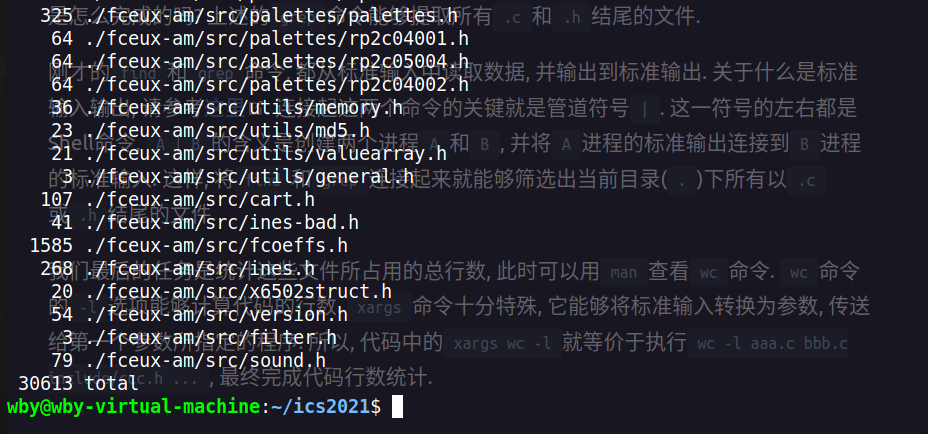
统计当前路径下的代码行数:
1 | find . | grep '\.c$\|\.h$' | xargs wc -l |
例: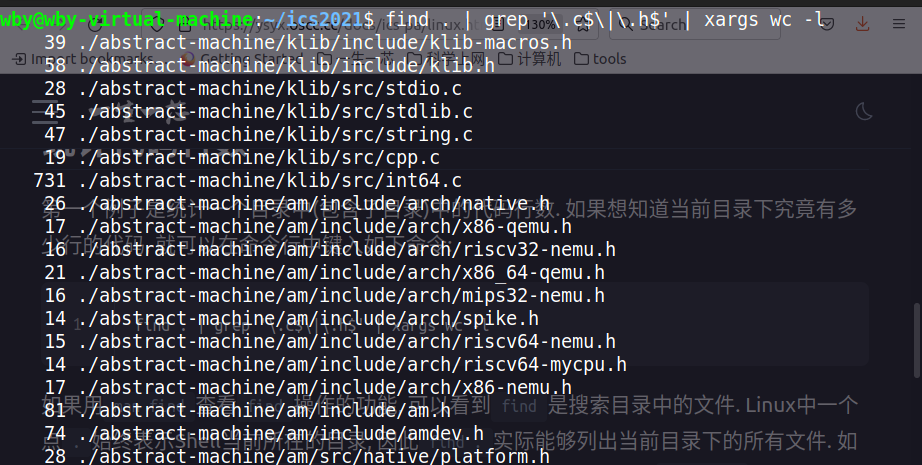
列出当前目录下的所有文件:
1 | find . |
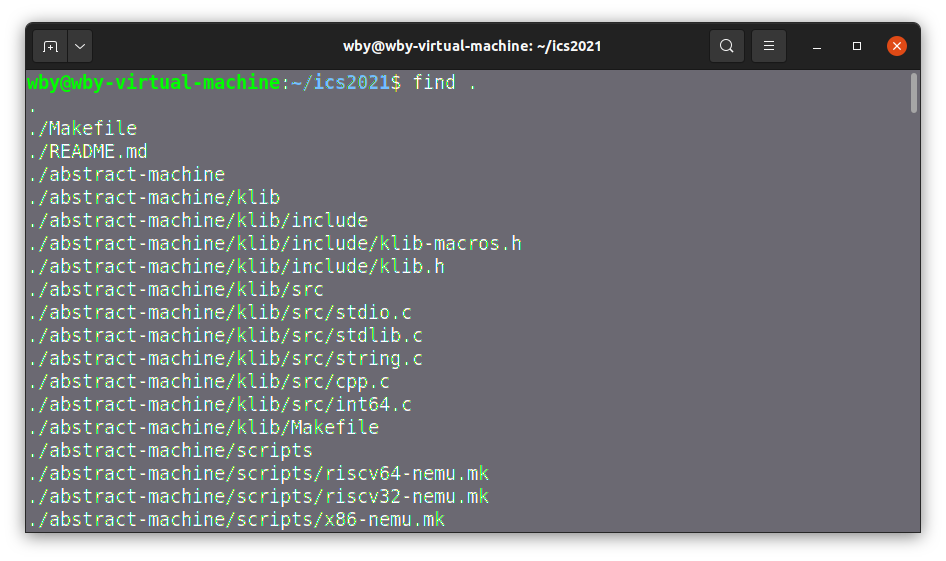
如果文件过多,按Ctrl + R退出。
grep简介:
man grep查看grep manual 。
DESCRIPTION
grep searches for PATTERNS in each FILE. PATTERNS is one or more patterns separated by newline characters, and grep prints each line that matches a pattern. Typically PATTERNS should be quoted when grep is used in a shell command.
A FILE of “-” stands for standard input. If no FILE is given,recursive searches examine the working directory, and nonrecursive searches read standard input.
In addition, the variant programs egrep, fgrep and rgrep are the same as grep -E, grep -F, and grep -r, respectively. These variants are deprecated, but are provided for backward compatibility.
正则表达式 Regular expression
https://en.wikipedia.org/wiki/Regular_expression
简写为regex 或 regexp。有时也被称为rational expression。是文本中指定搜索模式的字符串。关键词:过滤、分析、管理。
https://linux.vbird.org/linux_basic/centos7/0330regularex.php
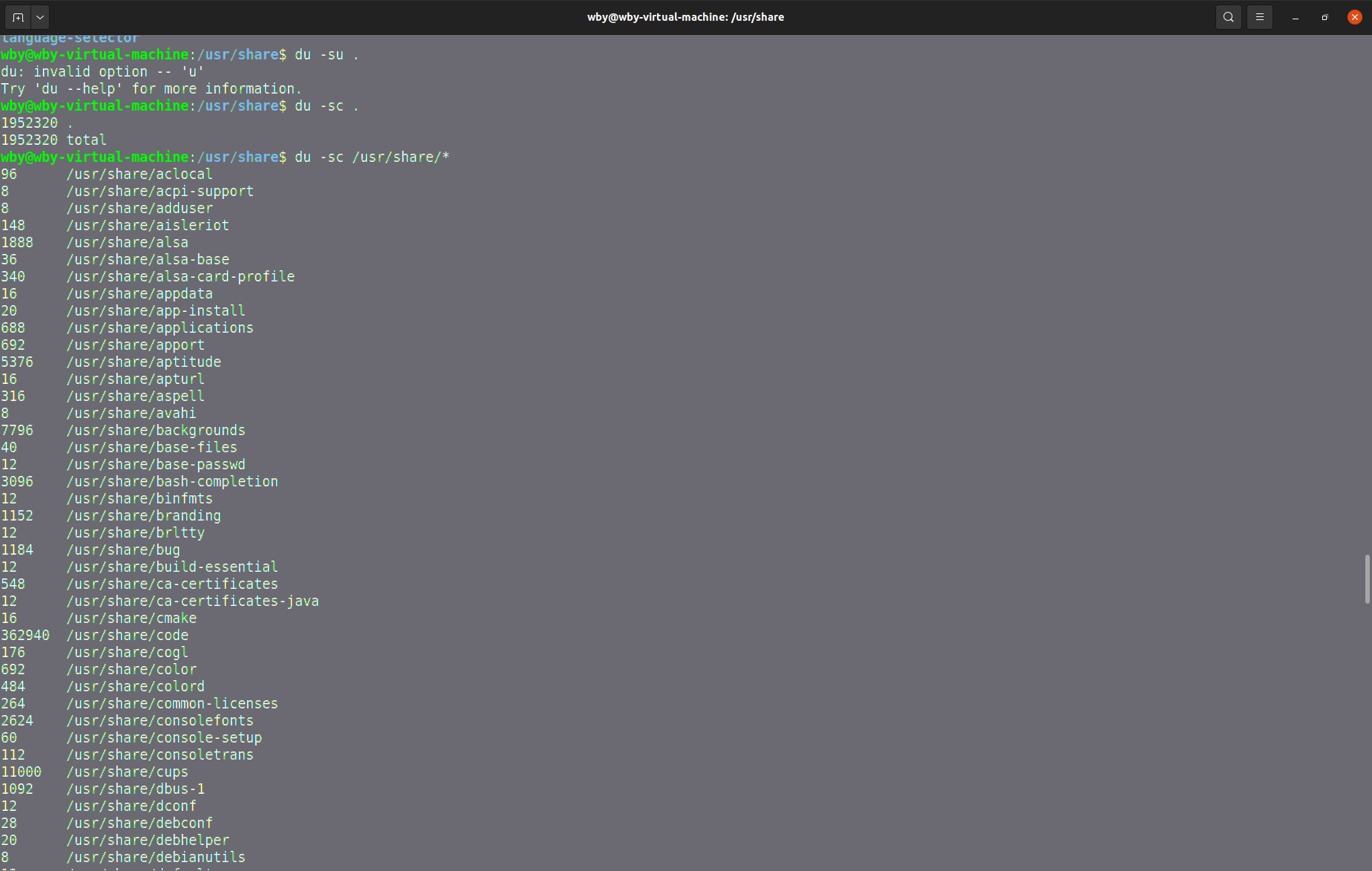
du命令
在/usr/share目录下,为什么du -sc .与du -sc /usr/share/*输出的结果不同?
man (manual) - an interface to the system reference manuals
man can tell you how to use other commands. Learn to use man , learn to use everything.
man 帮助
1 | man man |
Synopsis
1 | man [man options] [[section] page ...] ... |
参数 page 通常是程序名、函数名、name of utility。Section,参数指定manual的section。注意:manual page可能存在于多个section中。
more detail:
1 | man is the system's manual pager. Each page argument given to man is normally |
按照9种类型讲manual分成了9个section。manual的section编号与对应的页面类型关系如下表所示:
   1   Executable programs or shell commands
   2   System calls (functions provided by the kernel)
   3   Library calls (functions within program libraries)
   4   Special files (usually found in /dev)
   5   File formats and conventions, e.g. /etc/passwd
   6   Games
   7   Miscellaneous (including  macro  packages  and  conventions),  e.g.  man(7),
       groff(7)
   8   System administration commands (usually only for root)
   9   Kernel routines [Non standard]

   A manual page consists of several sections.